Using the Resources database


There is so much information out there, it can be overwhelming trying to find what you need. It’s even harder when you don’t know what you need, you just know you need something to help make changes.
So, where do you start looking? To help answer that question, we created our Resources database. Many of the resources, tools, and supports might be familiar, as they were previously on the Pines website. In addition, we’ve added to that wealth of information with a wide range of documents, books, websites, and videos that reflect the most up-to-date neuro-affirming approach to understanding and supporting neurodivergence. We will be adding new resources regularly, so that you always have access to the best info out there.
That said, it is a lot to look at all at once. So let’s break it down into more manageable steps.
You can find the Resources from the Home page in two different ways:
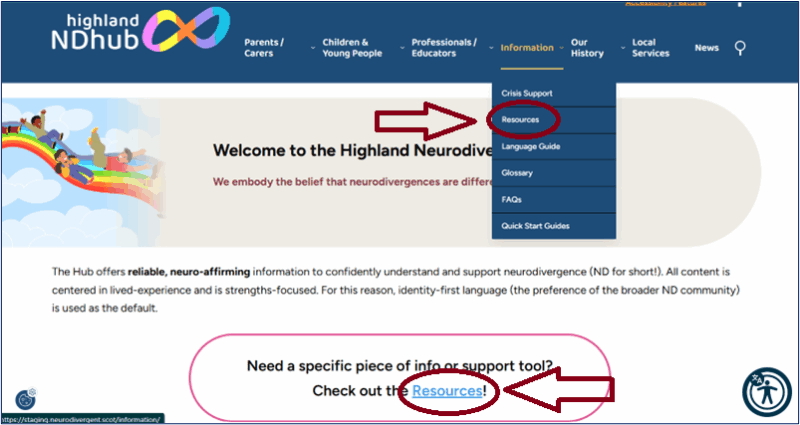
The first one is from the top bar menu, underneath the Information tab.
Or, you can scroll down a bit to find the link to Resources that is set off below the first paragraph.
Once you click on either link, it will take you to the Resources page.
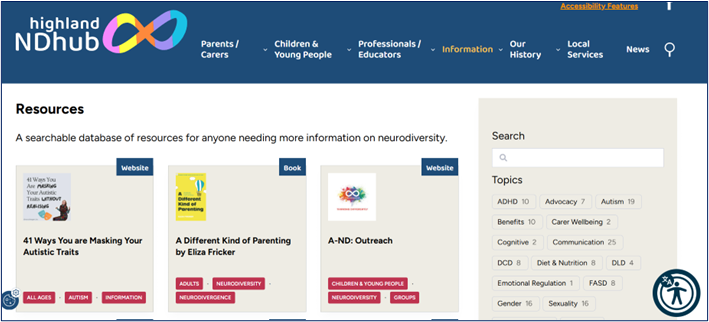
From here, there are a variety of ways to search, sort, and filter the Resources. You can do any of the following on their own OR in combination with one another:
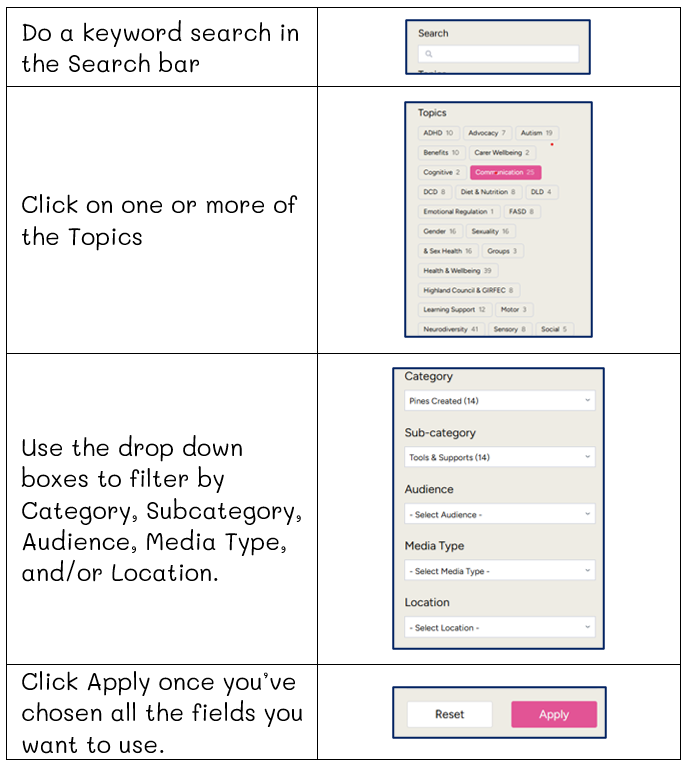
For example, let’s say you are looking for information on sensory needs.
You can type Sensory in the Search bar and hit Apply.
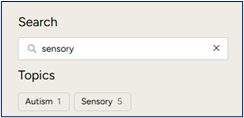
Or you can choose Sensory from the Topics, then hit Apply to call them up. (To clear the filter, click “Reset all” or just ‘x’ out the filter term)

The cards it pulls up will tell you the Media Type in the top right corner; the title of the Resource in the middle; and the Audience, the Topic, and the Category in the bottom left corner.
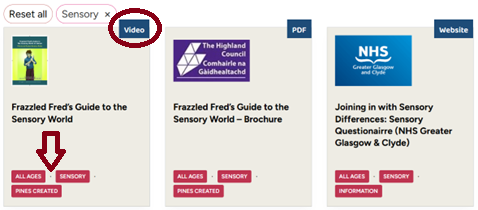
Click the Title of any of the cards to open a new window with more details.
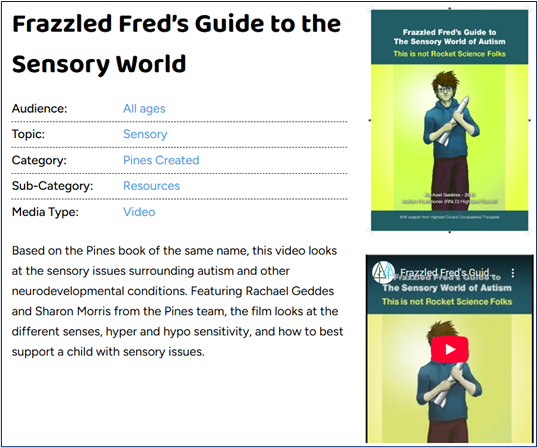
And that’s all you need to know. If you have any difficulties, or discover that the info you’re looking for isn’t in the Resources, drop us a message (via the Contact form on the Home page) so we can help.
In the meantime – Happy Searching!
